How to utilize all tasks
The “All tasks” view in ProofHub provides a comprehensive overview of all tasks across projects, helping you stay organized and up-to-date.
All tasks
-
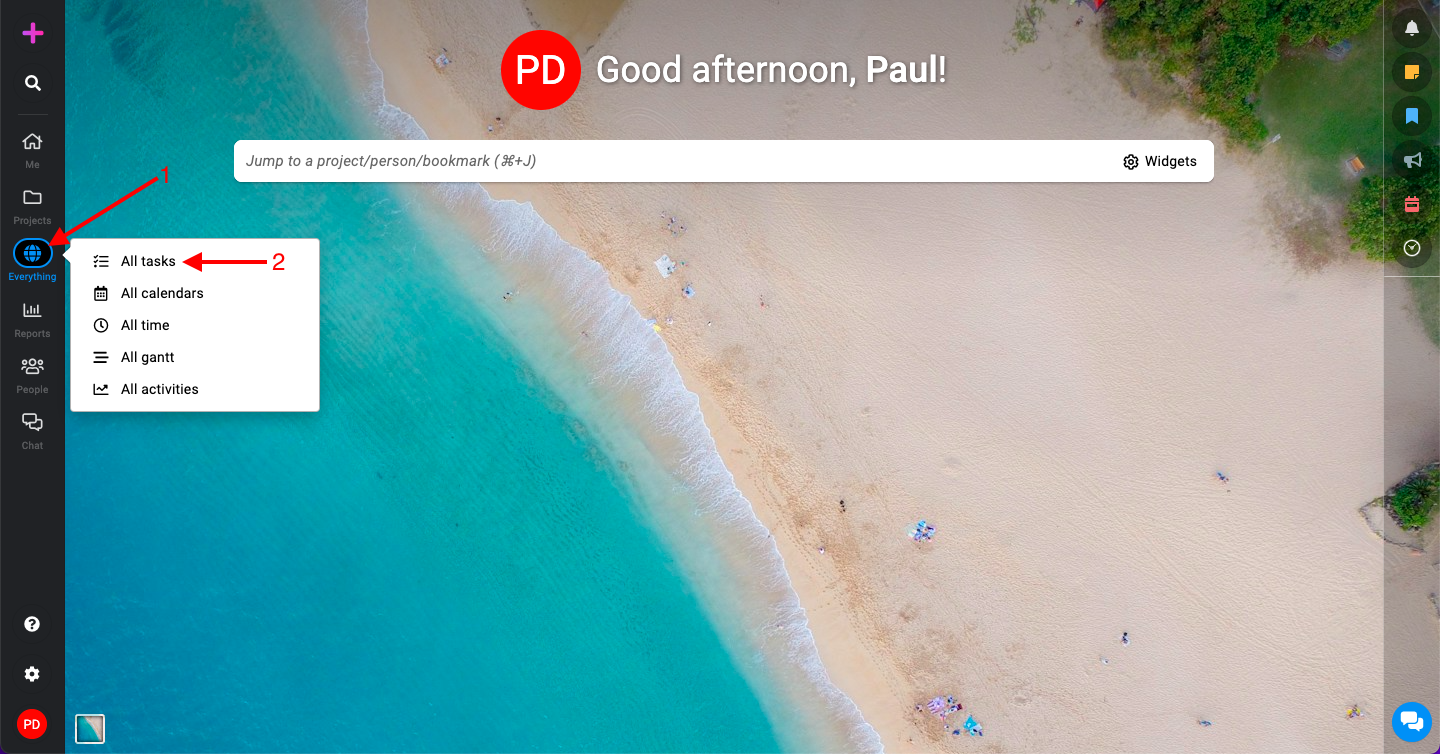
Click on “Everything” and select the “All tasks” option.
-
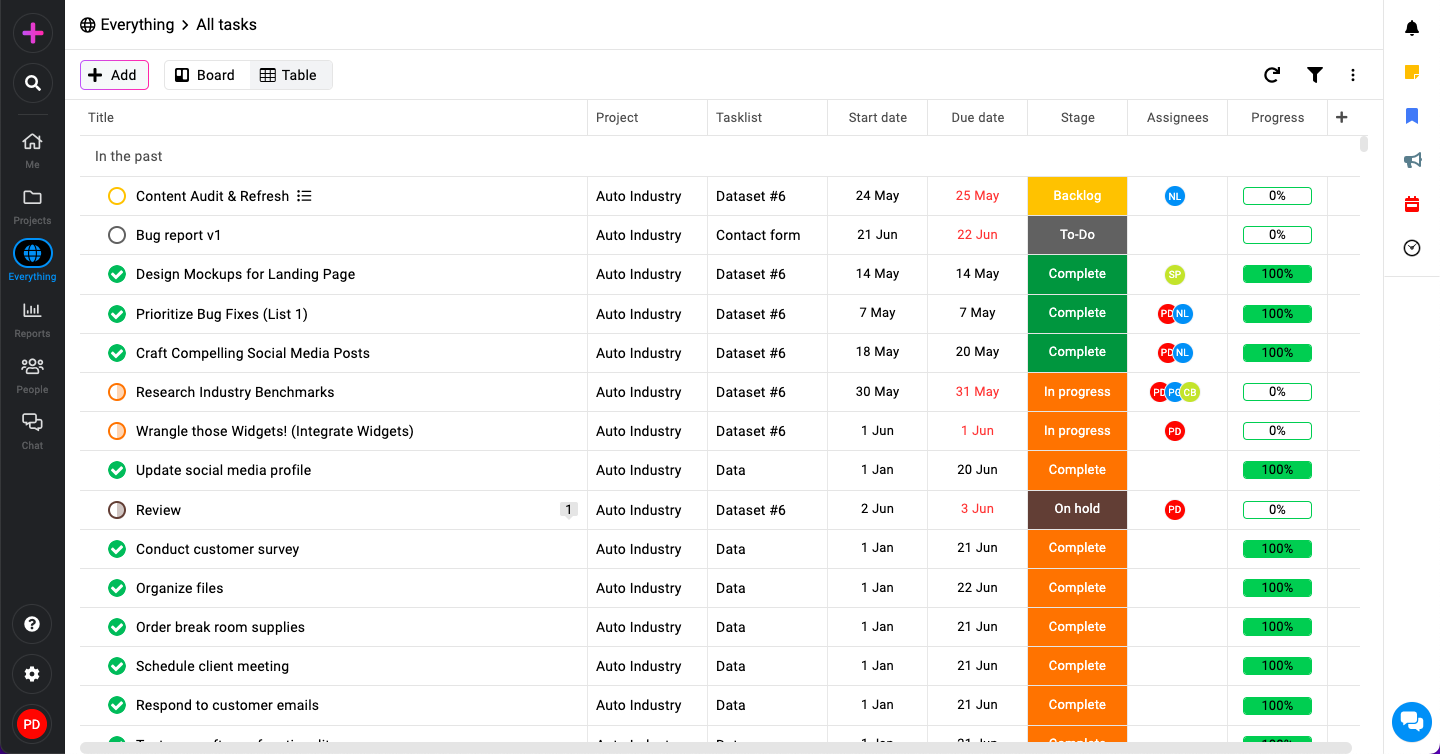
In the “All tasks” view, you will see a list of all tasks from all your projects.
Different views
-
Board view:
-
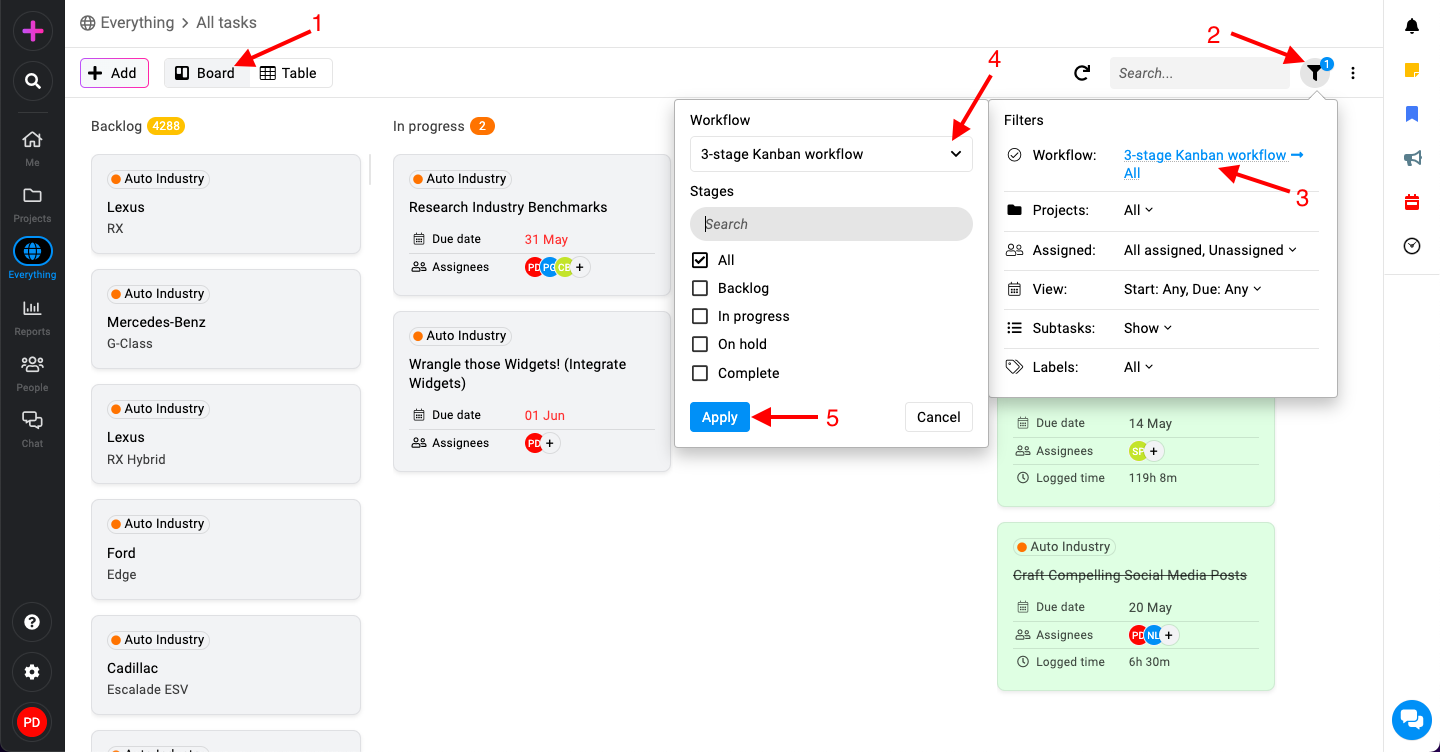
Select a workflow: When you switch to board view, you must select a specific workflow.
-
View tasks: After selecting the workflow, the board will display all tasks from different projects that follow the chosen workflow.
-
-
Table view:
-
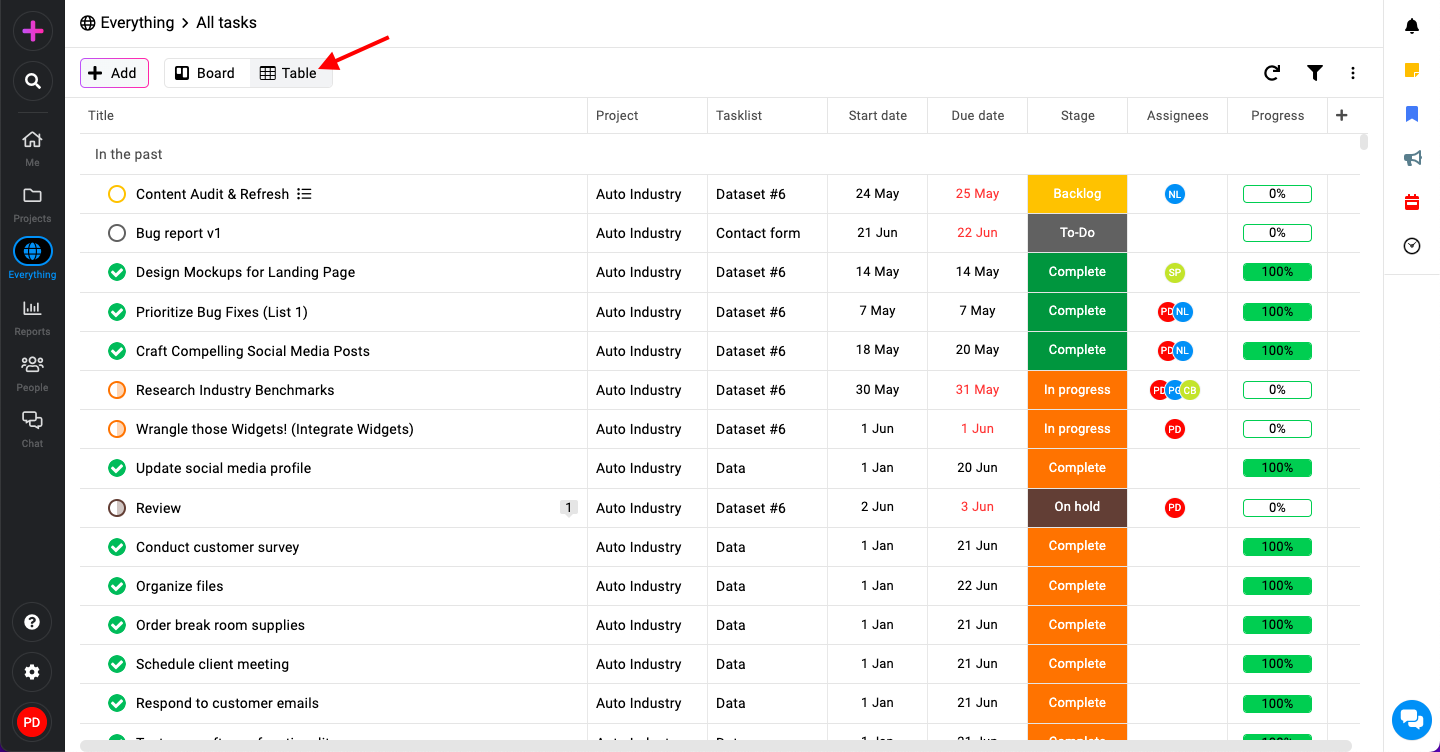
View tasks from all projects in one place.
-
Sort and manage tasks using different columns.
-
Filters
To refine your task list, you can apply various filters:
-
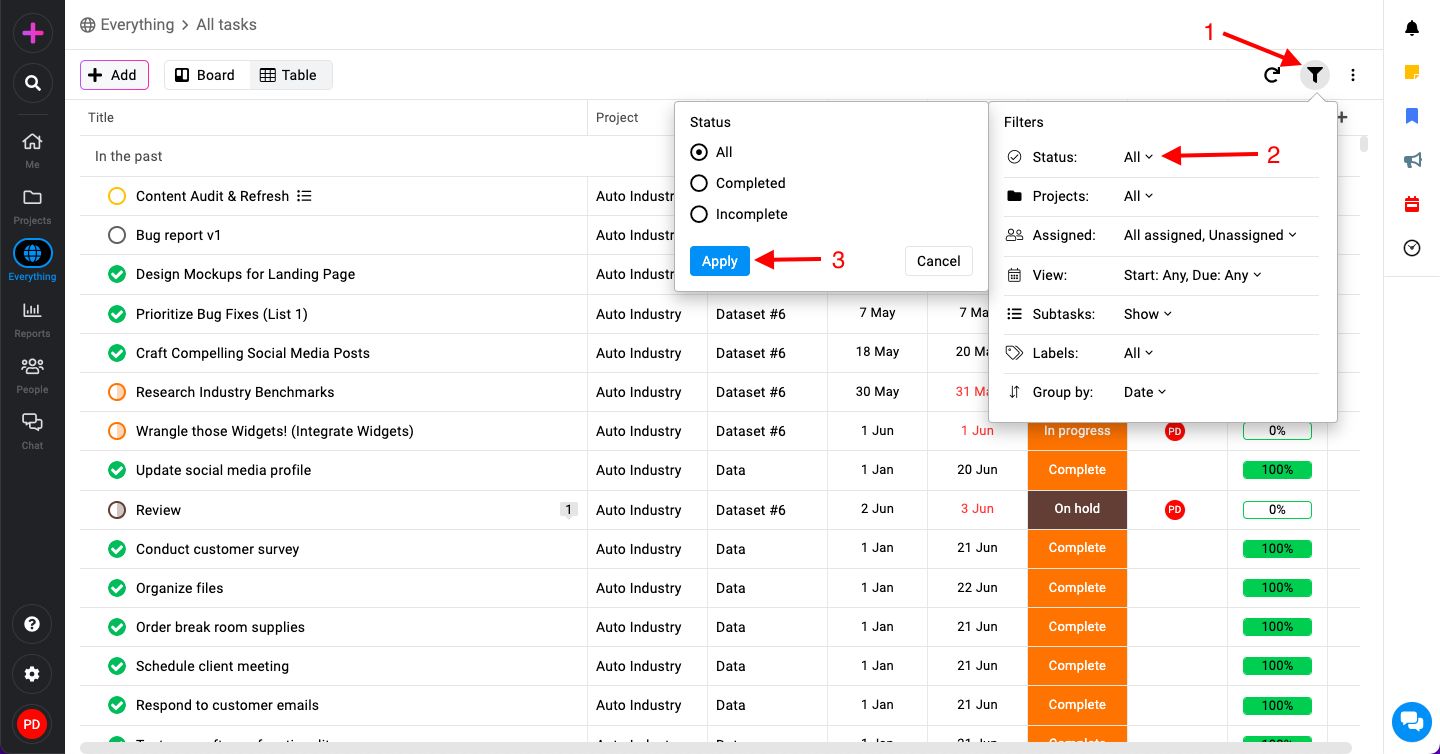
Locate filters: Find the filter option on the top right side of the “All tasks” page.
-
Set filters: Click on the filter icon, choose your desired criteria (such as due date, assignee, status, etc.), and click “Apply” to see the filtered tasks.
Export
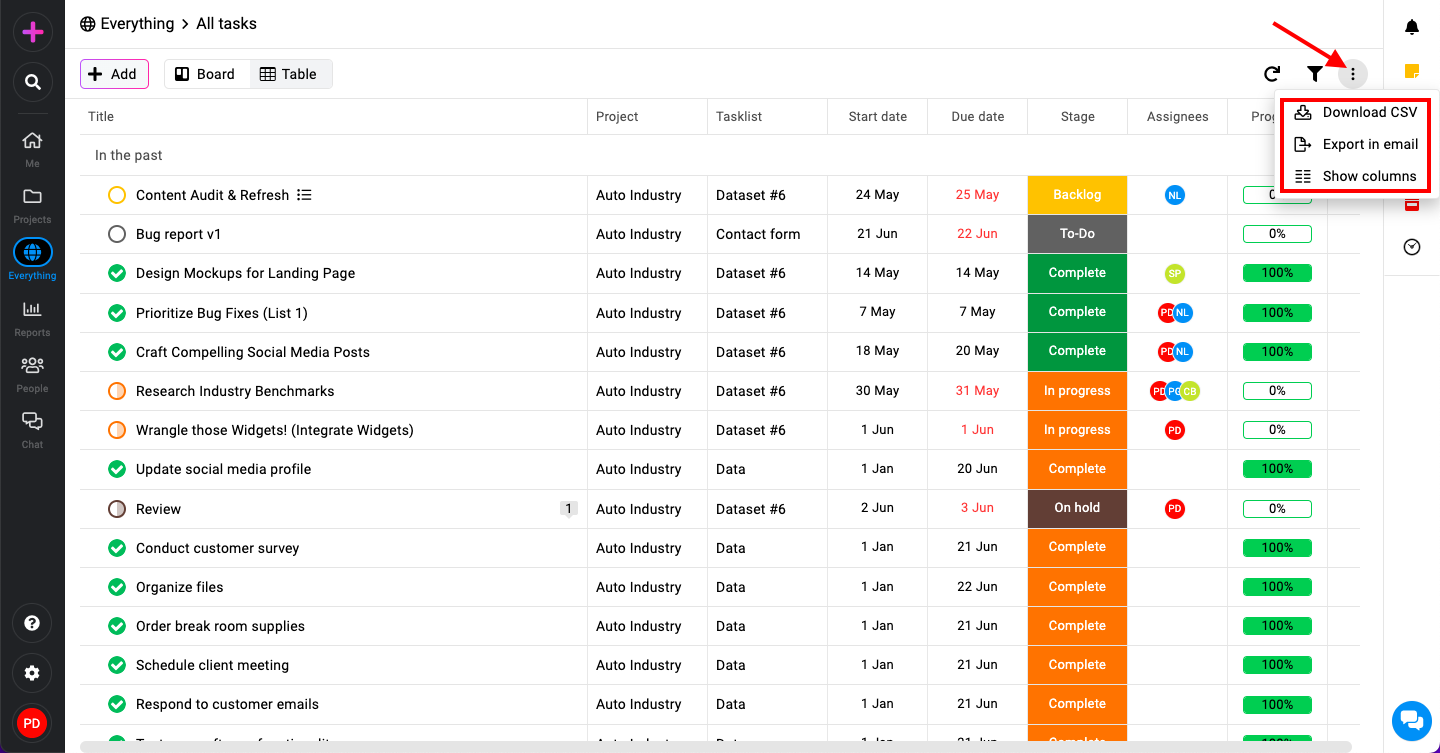
Exporting your tasks is straightforward with ProofHub. Click on the three dots next to the filter option to access the export option:
-
Download as CSV: This option lets you download the entire list of tasks in CSV format, which can be useful for offline analysis or integration with other tools.
-
Export in email: Choose this to have the task export file emailed to you, allowing you to share it easily with others or keep a backup.
-
Show columns: Customize the visibility of columns in your task list. This option allows you to hide columns that are not relevant to you, helping to declutter the view.
Note: Custom fields will not be accessible here.